
Device guide
IPTV Smarters Player on Roku: What Works and What Doesn’t
By CatchON TV Support TeamPublished
On this page
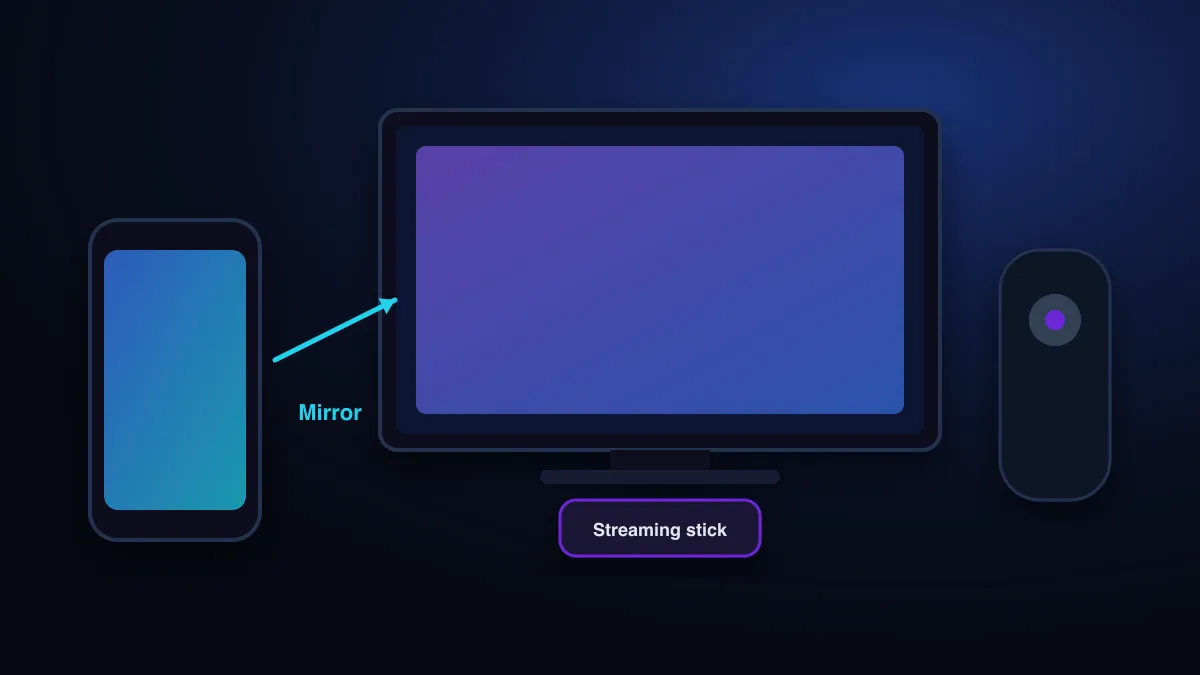
There is no straightforward way to install IPTV Smarters or most other IPTV players on a Roku. Roku runs its own operating system and installs apps only from its own store, where the common IPTV players aren’t reliably available. Screen mirroring works on some models, but a separate streaming stick is the dependable option.
Why Roku is different
Fire TV and Google TV are built on Android (Amazon describes Fire OS as “a fork of Android”, Amazon), so Android IPTV players usually run on them. Roku is not. Its apps are written specifically for Roku and installed from the Roku Streaming Store. There is no consumer setting like Android’s “install unknown apps”, so an Android APK such as an IPTV Smarters installer can’t simply be copied onto a Roku.
Is there an IPTV Smarters player for Roku?
People search for a “Roku Smarters player” because Smarters is popular elsewhere. Store availability changes, and apps with similar names come and go. If you find one, check the developer name and recent reviews, and treat any listing that promises free channels as a red flag. A genuine player never includes content. The IPTV Smarters guide explains the lookalike problem.
Your options, compared
| Option | Works? | Picture and control | Verdict |
|---|---|---|---|
| IPTV player from the Roku store | Sometimes, if a compatible one is listed | Native remote control | Check the developer carefully; availability varies |
| Screen mirroring from Android or Windows | On supported Roku models | Depends on Wi-Fi; phone must stay on | Fine occasionally, tiring daily |
| AirPlay from iPhone / iPad | On compatible Roku devices | Same limits as mirroring | Occasional use |
| Developer-mode sideloading | Technically, for developers | One test app at a time | Not a practical fix |
| Streaming stick on another HDMI port | Yes | Full app, own remote | The reliable choice |
Screen mirroring: how and its limits
Roku supports screen mirroring from compatible Android and Windows devices. You start mirroring on the phone or PC and approve the request with the Roku remote when it appears on the TV. Apple devices use AirPlay instead, on compatible Roku devices (Roku Support).
Why developer mode isn’t a real fix
Roku’s developer mode exists so developers can test their own apps. Its documentation is clear about the limits: “Only one app can be sideloaded at a time. If you sideload another app, the new app replaces” the previous one (Roku developer documentation). Guides that use it to install IPTV players depend on unofficial packages and break easily. We don’t recommend it.
The reliable route
Plug a Fire TV Stick, a Google TV device or another Android-based streamer into a free HDMI port on the Roku TV and switch inputs when you want IPTV. You keep Roku for its own apps and get a full IPTV player with a proper TV guide. The IPTV box guide explains what to look for. For CatchON TV, Fire TV setup is covered in the Firestick guide, and every supported device is listed on the devices page. If a player app refuses to install, see what “unsupported device” means.
Sources
- How to screen mirror from your phone, tablet, or computer to your Roku streaming device — Roku Support (accessed )
- Developer setup (developer mode and sideloading) — Roku Developer documentation (accessed )
- Fire OS overview — Amazon Developer documentation (accessed )
Check that your device works with CatchON TV before you choose a plan.
Check supported devices