

Troubleshooting
CatchON TV “Unsupported Device”: What It Means and What to Do
By CatchON TV Support TeamPublished
On this page
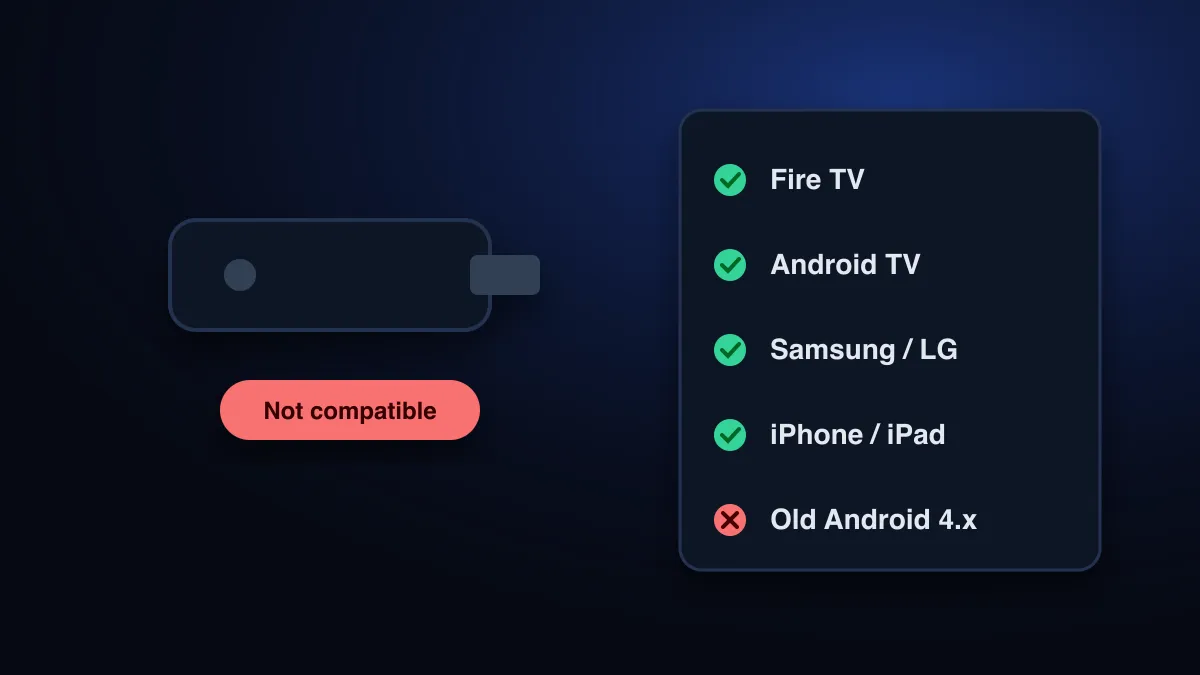
An “unsupported device” or “not compatible” message almost always comes from the player app or its app store, not from your CatchON TV subscription. The app can’t run on that hardware or software: the system is too old, the app isn’t made for that platform, or a required feature is missing. Updating the device or switching player usually fixes it.
What does “unsupported device” mean on CatchON TV?
CatchON TV is a login, not an app. It works wherever a compatible IPTV player can run. So when you see “unsupported”, the question is not “does CatchON TV support my TV?” but “does this player app support my TV?” Those are different answers more often than you would expect.
Where the message comes from
| You see | Comes from | What it means |
|---|---|---|
| “Your device isn’t compatible with this version” (Google Play) | Google Play | The app requires a newer Android version or a hardware feature your device lacks |
| App missing from the TV’s store search | Samsung or LG app store | The app isn’t released for your TV model or region |
| “App not installed” after sideloading an APK | Android / Fire OS | Wrong build for the device, too old an OS, or a damaged download |
| “Unsupported device” inside the app | The player app | The developer blocks that platform or OS version |
| “STB not supported” / portal error | MAC portal | The box model or its MAC address isn’t registered |
Google Play hides apps from devices that don’t meet their requirements: “Google Play hides your application from search results and category browsing” when a device fails its compatibility filters, such as the minimum Android version (Android Developers). That is why an app can be easy to find on one TV and missing on another.
Check your device’s software version
| Device | Where to look |
|---|---|
| Fire TV / Firestick | Settings › My Fire TV › About |
| Android TV / Google TV | Settings › System › About (Android TV OS version) |
| Android phone or box | Settings › About phone (or About device) › Android version |
| Samsung TV | Settings › Support › About This TV |
| LG TV | Settings, under General or Support (look for TV information / About this TV) |
| iPhone / iPad | Settings › General › About |
Then compare it with the requirements listed on the player app’s store page or official website.
Fixes that work
- Update the device software (Settings › System or About › Check for updates). This alone fixes many “not compatible” messages.
- Try a different player app. Players differ widely in what they support. One that refuses your TV is often replaced by another that runs fine.
- Get the right build. If you sideload on Fire TV or Android, download the APK only from the developer’s official site, and the build meant for TV rather than phones.
- Add an inexpensive streaming device. If the TV itself is too old, an HDMI stick is often cheaper than fighting an unsupported built-in system.
- Use a different login format. Some TV apps accept only an M3U link, others only a MAC activation. The setup guide lists which works where.
Roku, older TVs and MAG boxes
Roku
Roku runs its own operating system, and most IPTV player apps aren’t available for it. Workarounds exist but are limited. IPTV on Roku: what works covers them. In practice, a separate streaming stick on another HDMI port is the reliable option.
Smart TVs more than a few years old
App stores on older Smart TVs may no longer receive new IPTV players. If the TV has no updates left, an external device is the fix. The IPTV box guide compares the main types.
MAG and Formuler boxes
These use a portal address plus the box’s MAC address. “Unsupported” here usually means the MAC address hasn’t been registered for your account yet, so send the address on the box’s label to support.
Avoiding the problem before you buy
Check your device on the CatchON TV supported devices page, install the player app before paying, and use a trial to confirm everything runs. Fire TV specifics, including the unknown-apps setting described in Amazon’s developer documentation, are in the Firestick guide. For any other symptom, start with the CatchON TV troubleshooting guide.
Sources
- Filters on Google Play — Android Developers (accessed )
- Connect to Fire TV Through ADB — Amazon Developer documentation (accessed )
Still stuck after these steps? Send support your device model, app name and a photo of the error.
Contact support