

Troubleshooting hub
CatchON TV Not Working? A Step-by-Step Troubleshooting Guide
By CatchON TV Support TeamPublished
On this page
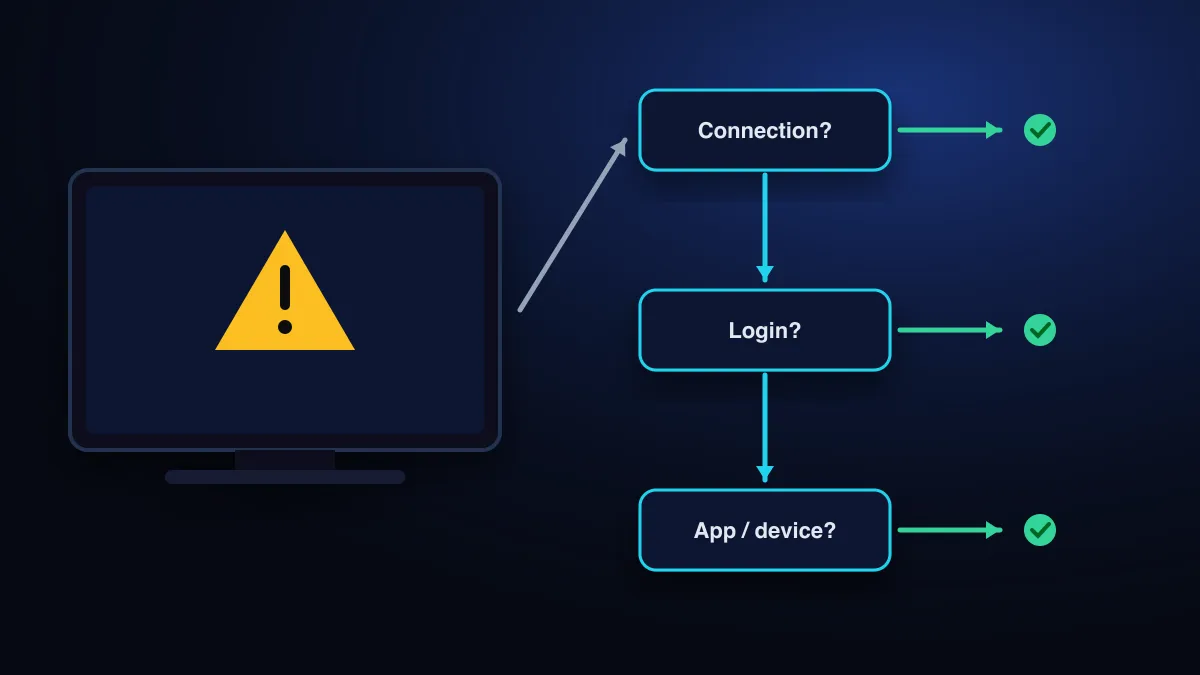
When CatchON TV stops working, first work out whether the problem is the service or your setup: try a second channel, a second device and a different network. Then match the symptom (nothing loads, login rejected, constant buffering, app won’t install) to its fix below. Most cases come down to the connection, the login details or the player app.
Is CatchON TV down, or is it my setup?
This page can’t show live status, and any page that claims to show “CatchON TV down today” without checking the servers in real time is guessing. These four quick tests answer the question for your own setup in about five minutes:
| Test | If it works | If it fails |
|---|---|---|
| Open three different channels | One channel’s source is down; report it | Continue below |
| Open YouTube or a speed test on the same device | The internet is fine; continue | Your connection or router is the problem |
| Sign in on a second device (phone on Wi-Fi) | The first device or its app is the problem | The account or service is the likely cause |
| Try the phone on mobile data instead of Wi-Fi | Your home network or ISP is blocking or slowing streams | Contact support; the account or service needs checking |
Match your symptom to a fix
| Symptom | Most likely cause | Go to |
|---|---|---|
| Picture stops and spins, then resumes | Connection speed or Wi-Fi stability | Buffering: causes and fixes |
| “Failed to authenticate”, “invalid login” or 401 | Typo, wrong server URL, expiry or too many devices | Fix authentication errors |
| App won’t install or says “not compatible” | Old operating system or wrong app for the platform | Unsupported device |
| Channel list loads, guide is empty | Guide (EPG) not updated or not available | Adding the TV guide |
| Everything worked yesterday, nothing loads today | Expired plan, router issue or app update | The five-minute reset, below |
| One channel black or “stream not available” | That channel’s source is down | Report the channel name to support |
The five-minute reset
Work through these in order and test after each step. Most problems are gone by step 3.
Fully restart the device
Unplug the TV or streaming stick for 30 seconds. Pressing the remote’s power button often only sends it to standby.
Restart the router
Unplug it for 30 seconds and wait until all its lights are steady before testing again.
Update the player app
An outdated player is a common cause of sudden failures after a server-side change.
Clear the app’s cache
On Android and Fire TV: Settings › Applications › your player › Clear cache. Don’t choose “Clear data” unless you are ready to sign in again.
Re-enter the login
Remove the playlist and add it again, copying the details from your activation message rather than typing from memory.
Device-specific checks
Fire TV and Firestick
Check free storage (Settings › My Fire TV › About › Storage). Low storage causes freezing and crashes. If you reinstalled a sideloaded player, the unknown-apps permission may need turning on again, as described in Amazon’s developer documentation and our Firestick setup guide.
Samsung and LG Smart TVs
MAC-activated players stop loading if the playlist was removed on the player’s website or the activation period lapsed. Re-check the MAC address entry, then restart the app. The Smart TV guide covers each step.
Phones and tablets
Battery-saver modes can stop apps streaming in the background or throttle data. Switch them off while watching, and check that the player is allowed to use mobile data.
When to contact support
Contact support if the four tests point to the account or service, or the reset sequence didn’t help. Include:
- Your device model and the player app (with version, if shown)
- A photo of the exact error message
- Which channels fail, and whether the problem is all the time or only in the evening
- The result of a speed test on that device
You can reach support at support@catchontv8k.com or through the contact page. For general speed requirements see supported devices, and for the full setup process see the setup guide.
Sources
- Connect to Fire TV Through ADB — Amazon Developer documentation (accessed )
Still stuck after these steps? Send support your device model, app name and a photo of the error.
Contact support