

Troubleshooting
CatchON TV “Failed to Authenticate”: How to Fix It
By CatchON TV Support TeamPublished
On this page
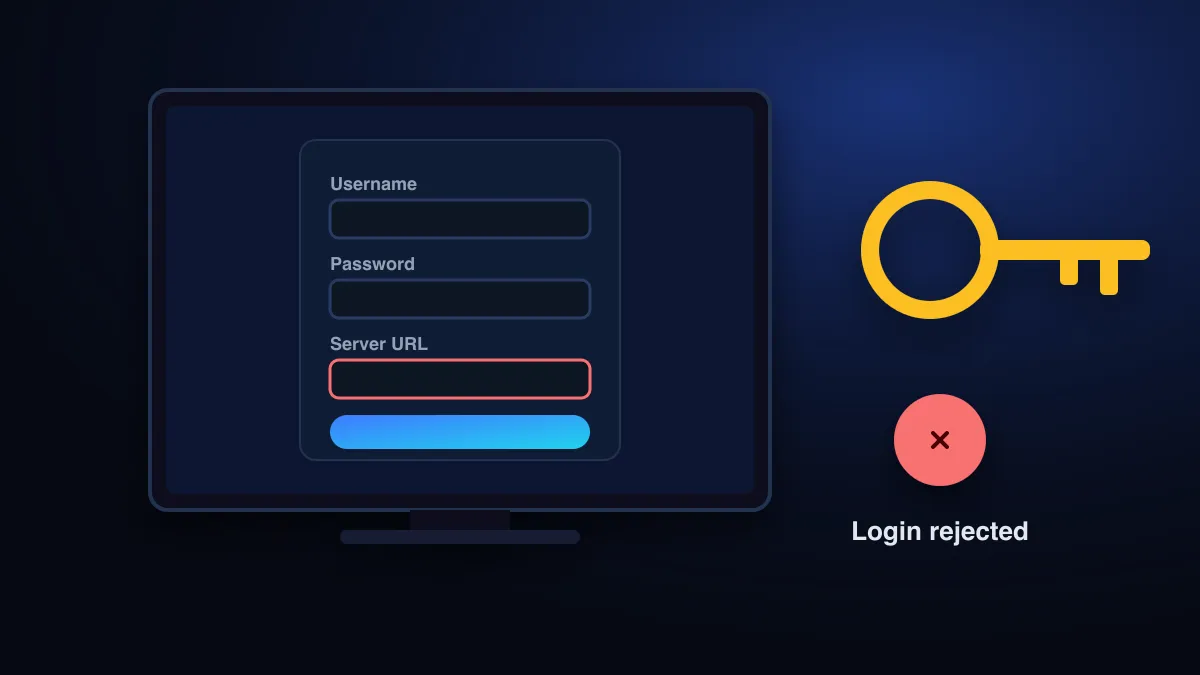
“Failed to authenticate” means your player app reached the CatchON TV server but the server didn’t accept the login. The usual causes are a typo in the username or password, an incomplete server URL (missing http:// or the port number), an expired plan, or more devices playing at once than your plan allows. Check them in that order.
What does “failed to authenticate” mean?
When you sign in, the player sends your username and password to the server address you entered and asks for the channel list. If the server rejects the request, or can’t be found at that address, the app shows an authentication error. Player apps word it differently, but the causes are the same.
Fix the CatchON TV login in this order
Copy the details again. Don’t retype them
Usernames and passwords are case-sensitive. Copy them from your activation message. Look out for a space pasted at the end, a capital O instead of a zero, or a lowercase l instead of a capital I.
Check the server URL format
Include the full address exactly as sent:
http://orhttps://, the domain and the port (for example:8080). See the table below.Check the plan hasn’t expired
An expired account is rejected exactly like a wrong password. Many players show an expiry date in the account or user-info screen. If not, ask support.
Stop playback on other devices
If your plan covers one screen and another device is playing, a new sign-in can be refused. Close the app on the other device, wait a minute and try again. Need more screens? Plans for up to four devices are on the pricing page.
Check the device’s date and time
Secure (https) connections fail when the device clock is far off. Set date and time to automatic.
Remove the playlist and add it again
Some apps cache a failed login. Delete the playlist or user profile, restart the app and add it fresh.
Getting the server URL right
| Entered as | Result | Why |
|---|---|---|
http://example.com:8080 | Correct | Protocol, domain and port, exactly as sent |
example.com:8080 | Often fails | Some apps need the http:// prefix |
http://example.com | Fails | Missing port, so the app connects to the wrong service |
http://example.com:8080/ | Sometimes fails | Some apps don’t accept a trailing slash |
https://example.com:8080 | Fails if the server expects http | Use the protocol you were given |
Similar error messages
| Message | Most likely meaning | Fix |
|---|---|---|
| Invalid username or password | Typo or wrong case | Steps 1 and 6 |
| Account expired / inactive | Plan ended or not yet activated | Renew or ask support to check activation |
| Max connections reached | Too many devices playing at once | Step 4, or a plan with more devices |
| 401 Unauthorized | Server rejected the login | Steps 1 to 3 |
| 403 Forbidden | Account blocked, or the network blocks the server | Test on mobile data; contact support |
| Failed to connect / server not responding | Wrong server URL or port, or a network problem | Step 2; test on another network |
The numbers come from the web’s HTTP standard. A 403 means, in the specification’s words, that “the server understood the request but declines to fulfill it” (RFC 9110), so the details reached the server and were refused. A connection error, by contrast, means the app never reached the right server at all.
The two-minute browser test
Open your M3U link in a browser on a computer or phone. If it downloads a text file beginning with #EXTM3U, your account works and the problem is how the details were entered in the app, or the app itself. If you get an error page, the account or the link is the problem. Send support a screenshot of that page.
Still failing?
Send support the app name, the exact error text and a photo of the login screen with the password hidden. If the login works but the picture stalls, the problem is speed, not authentication. See CatchON TV buffering fixes. For anything else, the CatchON TV troubleshooting guide lists every common symptom.
Sources
- RFC 9110: HTTP Semantics (status codes 401 and 403) — IETF / RFC Editor (accessed )
- M3U — Wikipedia (accessed )
Still stuck after these steps? Send support your device model, app name and a photo of the error.
Contact support