

Troubleshooting
CatchON TV Buffering: Causes and Fixes
By CatchON TV Support TeamPublished
On this page
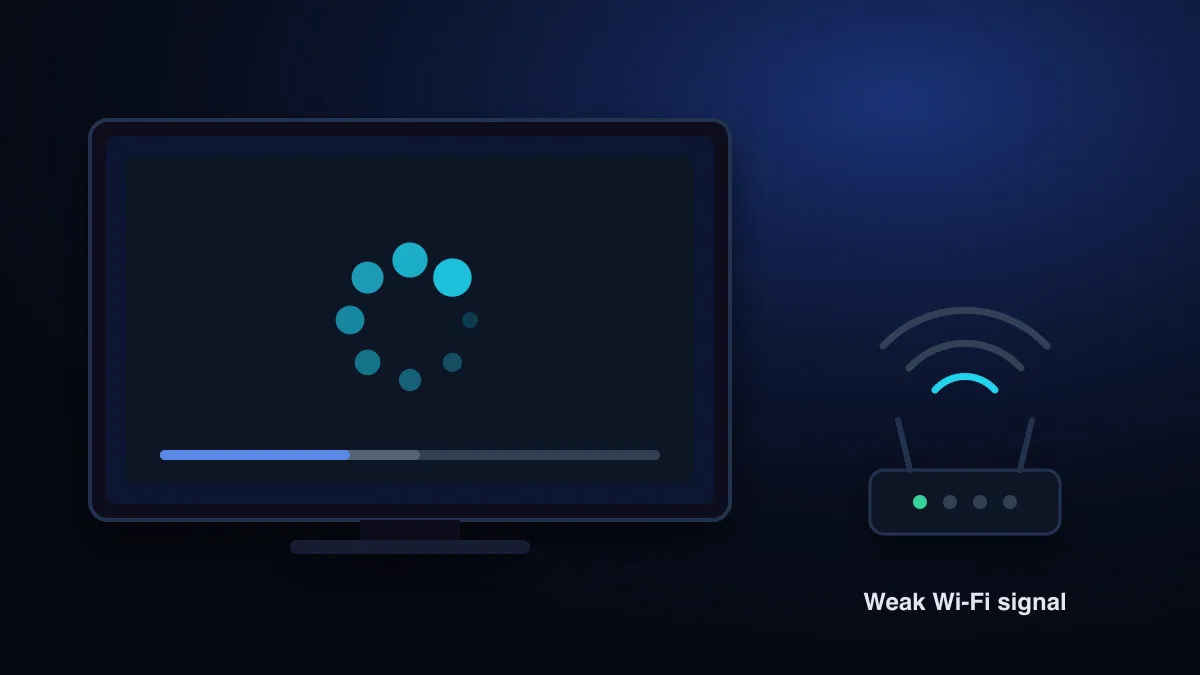
CatchON TV buffers when video arrives more slowly than it plays and the player’s small reserve runs out. Common causes are weak Wi-Fi, other devices using the connection, or a streaming stick short on memory or unable to decode 4K. Check whether it affects every channel, every device or only peak time, then fix that cause.
Why does CatchON TV buffer?
On-demand apps can download minutes of video ahead and ride out a slow patch. Live channels can’t, because the video doesn’t exist yet, so a player keeps only a few seconds in reserve. A connection that is fine for browsing can still dip below the steady rate a live HD or 4K channel needs, and when it does, the picture stops.
Find the pattern first
Before changing anything, note when the buffering happens. The pattern points to the cause.
| Pattern | Likely cause | Start with |
|---|---|---|
| One channel only | That channel’s source | Report it; try another version of the channel |
| All channels, one device | Device, app or that room’s Wi-Fi | Device and app fixes |
| All channels, all devices | Home connection or router | Speed test, then Wi-Fi fixes |
| Only in the evening | Network congestion at peak time | Wired connection; lower quality at peak |
| Only 4K channels | Bandwidth or the device can’t decode 4K | Speed test; check the device supports 4K |
| Starts after 20–30 minutes | Device overheating or memory filling up | Restart the device; clear the cache |
Run a speed test that means something
A speed test on your laptop next to the router says little about your TV in another room. To get a useful number:
Test on the device that buffers
Use the TV’s or stick’s browser or a speed-test app on it, not your phone.
Test when it buffers
If it’s worse in the evening, test in the evening.
Pause other heavy use
Downloads, game updates and cloud backups compete for the same bandwidth.
Compare with what you need
About 3 Mbps per HD stream and 15 Mbps per 4K stream, the figures Netflix recommends. Add them up for every screen watching at once.
If the result is comfortably above what you need and buffering continues, the connection isn’t the bottleneck. Skip to the device and app fixes.
Fix the Wi-Fi
- Use Ethernet if you can. A cable removes almost all Wi-Fi variability. Many Fire TV and Android TV devices accept a USB or micro-USB Ethernet adapter.
- Use the 5 GHz band. It is faster and less crowded than 2.4 GHz, though it doesn’t travel as far through walls.
- Move the router or the stick. A Firestick behind a TV, inside a cabinet, can lose a lot of signal. An HDMI extender cable moves it out into the open.
- Add a mesh point if the TV is several rooms away from the router.
Fix the device and app
| Fix | Why it helps |
|---|---|
| Restart the device by unplugging it | Clears memory that apps leave behind; standby doesn’t |
| Clear the player’s cache | A bloated cache slows older sticks with little storage |
| Free storage | Low storage makes Fire TV and Android devices stutter |
| Update the player and the device | Playback bugs get fixed; older versions can lose compatibility |
| Close background apps | Low-memory devices struggle to stream and run other apps |
Player settings worth checking
Not every app has these options, and names vary, but they are worth looking for in the player’s playback settings:
- Buffer size: a larger buffer adds a second or two before a channel starts, but rides out short dips better.
- Decoder: switching between hardware and software decoding fixes stutter on some devices.
- Stream format: some players let you choose between formats such as MPEG-TS and HLS. If one buffers, try the other.
When it really is the channel
If one channel buffers on every device while others are fine, the problem is upstream of you. Send support the channel name, the time it happened and your device, so the source can be checked. For any other problem, start with the CatchON TV troubleshooting guide. If streams won’t start at all, read how to fix authentication errors.
Sources
- Netflix-recommended internet speeds — Netflix Help Center (accessed )
Still stuck after these steps? Send support your device model, app name and a photo of the error.
Contact support