

Requirements guide
4K IPTV: What You Need for Real 4K Streams
By CatchON TV Support TeamPublished
On this page
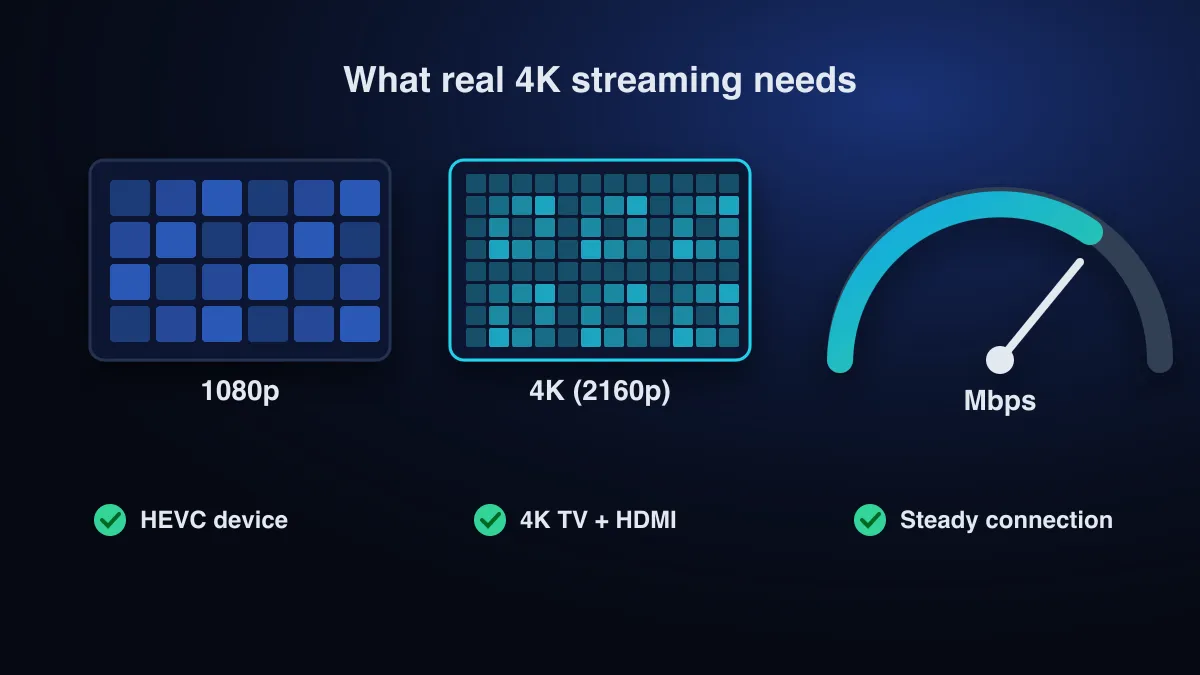
4K IPTV only works when four things line up: a stream that is actually 4K, a device that can decode it (usually with HEVC/H.265), a 4K TV on a 4K-capable HDMI port, and a steady connection of about 15 Mbps for each 4K stream. If any one link is missing you get HD, or a 4K stream that keeps buffering.
The four links in the 4K IPTV chain
| Link | Requirement | How to check |
|---|---|---|
| Stream | A 3840 × 2160 source, not an upscaled HD feed | Player’s stream info while the channel plays |
| Device | 4K output and HEVC (H.265) decoding | Device spec sheet; the player’s decoder settings |
| TV | 4K panel, connected to an HDMI input that accepts 4K | TV manual; input label or settings |
| Connection | About 15 Mbps per 4K stream, steady at peak times | Speed test on the device itself, in the evening |
Internet speed for 4K IPTV
Netflix recommends about 15 Mbps for 4K streaming (Netflix). Live IPTV is less forgiving than on-demand video because the player can only buffer a few seconds ahead. Treat 15 Mbps as the floor for each stream, not the target.
| 4K streams at once | Minimum steady speed | Comfortable with headroom |
|---|---|---|
| 1 | 15 Mbps | 25 Mbps or more |
| 2 | 30 Mbps | 50 Mbps or more |
| 3 | 45 Mbps | 75 Mbps or more |
| 4 | 60 Mbps | 100 Mbps or more |
The minimums multiply Netflix’s 15 Mbps figure; the headroom column is our rule of thumb for live TV, not a published standard.
Run the speed test on the streaming device, not your phone, and at the time you usually watch. Wi-Fi is the usual weak point: use Ethernet, or put the device on 5 GHz Wi-Fi close to the router. If 4K stutters while HD plays smoothly, read the buffering guide.
HEVC: why the device matters
Most 4K streams are compressed with HEVC, standardised by the ITU as H.265, “High efficiency video coding” (ITU-T). It was designed to need less data than the older H.264 for the same picture, which is what makes 4K practical over home broadband. A device must decode HEVC in hardware at 4K to play these streams smoothly.
HEVC support alone is not enough for 4K. The MAG 322 set-top box, for example, decodes HEVC only “up to 1080p” (Infomir), so it cannot show 4K channels at all. See our MAG 322 IPTV guide. When choosing hardware, look for “4K” and “HEVC” or “H.265” together on the spec sheet. The IPTV box guide compares device types.
TV and HDMI settings
- Plug the streaming device into an HDMI input the TV manual lists as 4K-capable; on some TVs only certain inputs are.
- Some TVs need an enhanced HDMI mode switched on for that input. Look in the picture or external-device settings.
- Use the HDMI cable that came with the device, or one rated for 4K.
- Set the device’s display output to 4K (2160p). Many default to “auto”, which is fine if the TV reports 4K correctly.
- If colours look washed out on HDR content, check the device’s dynamic-range setting before blaming the stream.
Is the channel really 4K?
A “4K” label in a channel list is a claim, not a measurement. Play the channel and open the player’s stream or codec information, which many player apps offer. A real 4K stream reports 3840 × 2160. If it reports 1920 × 1080, you are watching HD whatever the label says. A stream can also be 3840 × 2160 but upscaled from HD at the source, which no setting on your side can fix. Judge by sharpness on fine detail, such as text and grass.
Choosing a 4K IPTV subscription
For the best 4K IPTV subscription, look for one whose 4K channels you actually watch and that your connection can carry. Before paying, ask how many channels are 4K and which ones, how many 4K streams a plan allows at once, and whether there is a trial. The general buying questions are in the IPTV subscription checklist. For CatchON TV, check your hardware on the supported devices page first.
4K IPTV problems and fixes
| Symptom | Likely cause | Fix |
|---|---|---|
| 4K channel looks soft | Stream is HD or upscaled | Check stream info; ask the provider |
| Buffers in 4K, fine in HD | Connection below about 15 Mbps at that moment | Ethernet or 5 GHz Wi-Fi; test at peak time |
| Black screen or no video, audio plays | Device can’t decode HEVC at 4K | Try the player’s hardware/software decoder switch, or another device |
| Menu shows 1080p only | HDMI input or cable not 4K-capable | Move to a 4K input; enable enhanced HDMI mode |
| Stutters when others are online | Several streams share the connection | Count simultaneous streams against the speed table above |
Sources
- Netflix-recommended internet speeds — Netflix Help Center (accessed )
- Recommendation ITU-T H.265: High efficiency video coding — International Telecommunication Union (ITU-T) (accessed )
- MAG322 description and specifications (discontinued set-top boxes) — Infomir (accessed )
Check that your device works with CatchON TV before you choose a plan.
Check supported devices